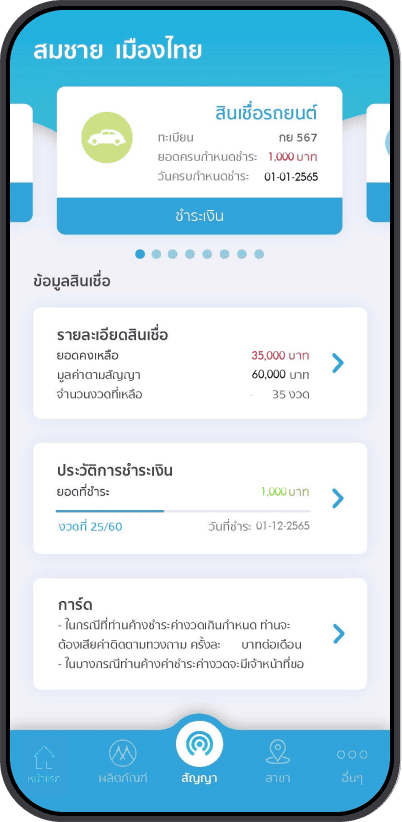
Step 1
Select the contract you want to pay, then tap “ชำระเงิน” (Pay).
Screenshots show the actual Thai interfaces used in the applications. English explanations are provided for each step.
Step 1
Select the contract you want to pay, then tap “ชำระเงิน” (Pay).
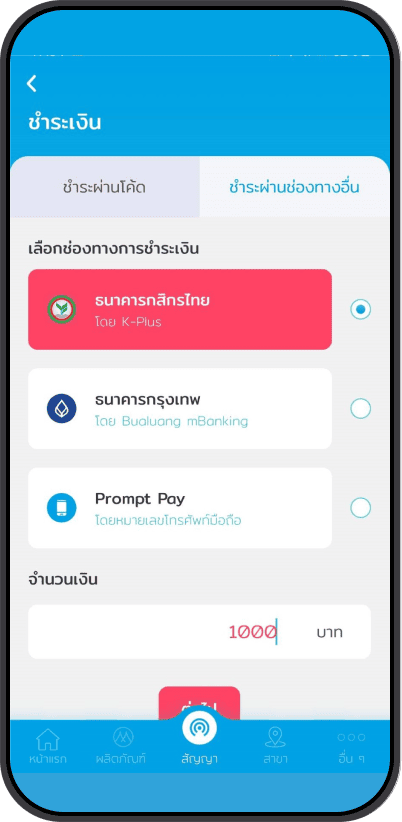
Step 2
Select “ชำระช่องทางอื่น” (Other Payment Channels), then choose Kasikorn Bank.
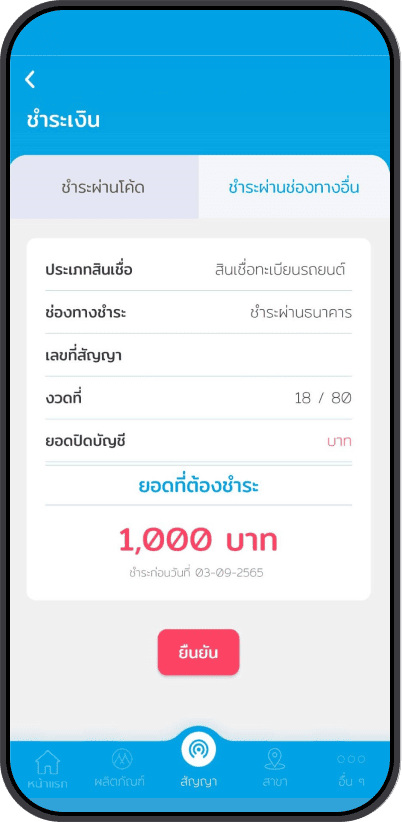
Step 3
Enter the payment amount, then tap “ยืนยัน” (Confirm).
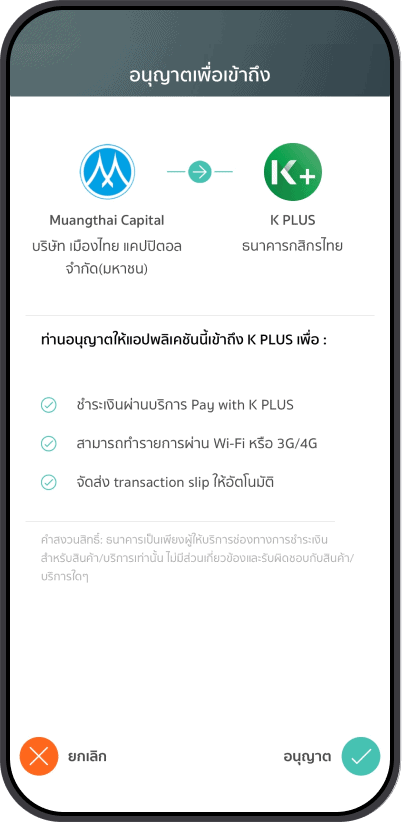
Step 4
For your first transaction, enable “อนุญาตเพื่อเข้าถึง” (Allow Access).
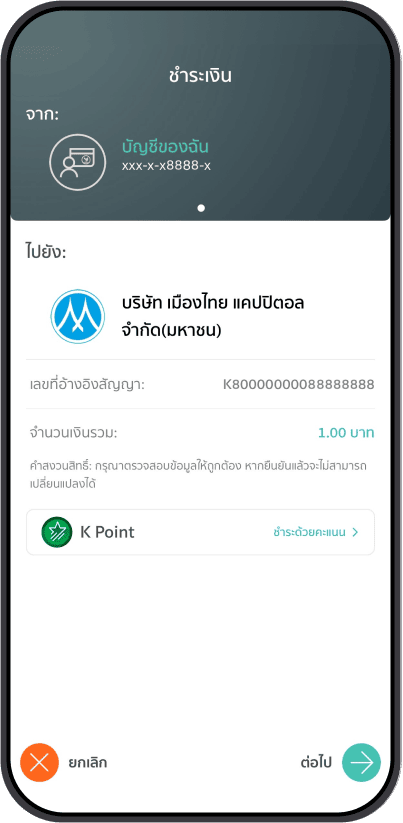
Step 5
Review the payment amount.
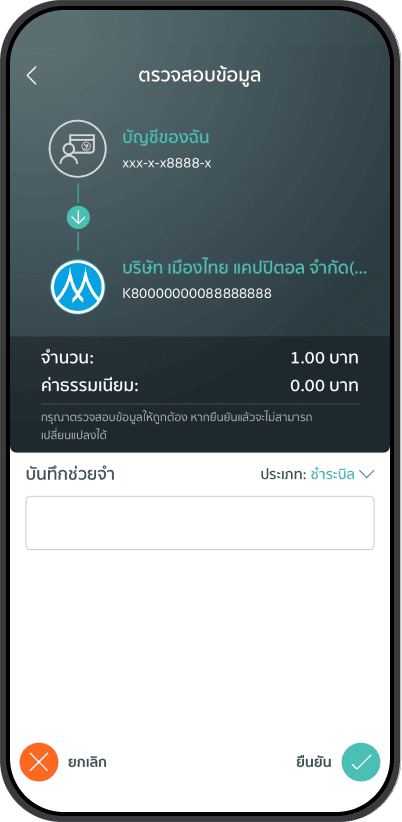
Step 6
Confirm the payment.
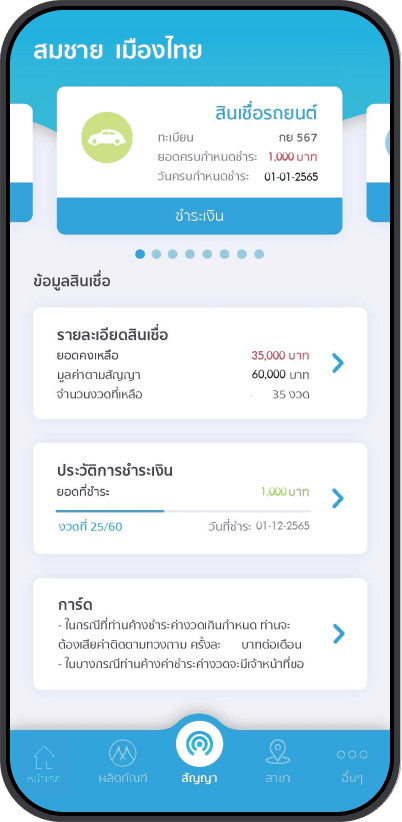
Step 1
Select the contract you want to pay, then tap “ชำระเงิน” (Pay).
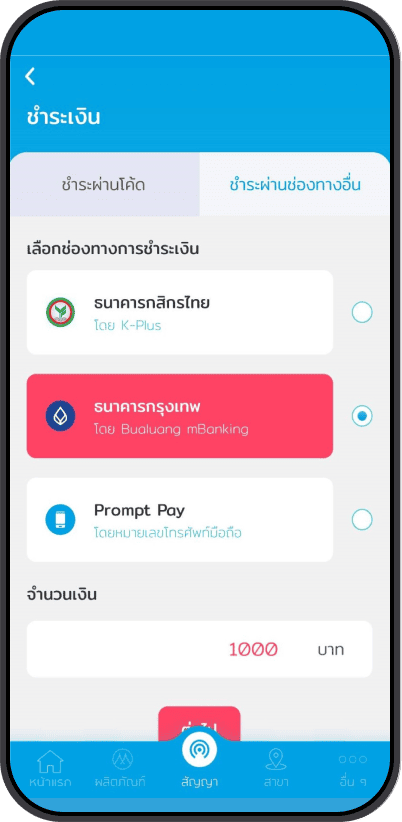
Step 2
Select “ชำระช่องทางอื่น” (Other Payment Channels), then choose Bangkok Bank.
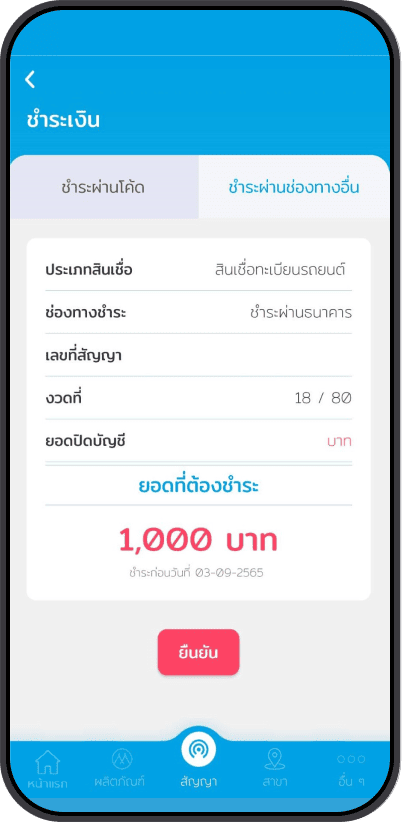
Step 3
Enter the payment amount, then tap “ยืนยัน” (Confirm).

Step 4
The transaction will be sent to the Bangkok Bank application.
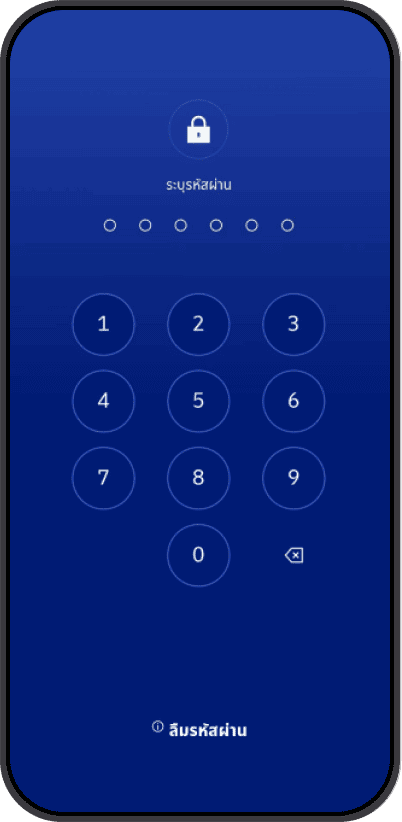
Step 5
Log in to the Bangkok Bank application.
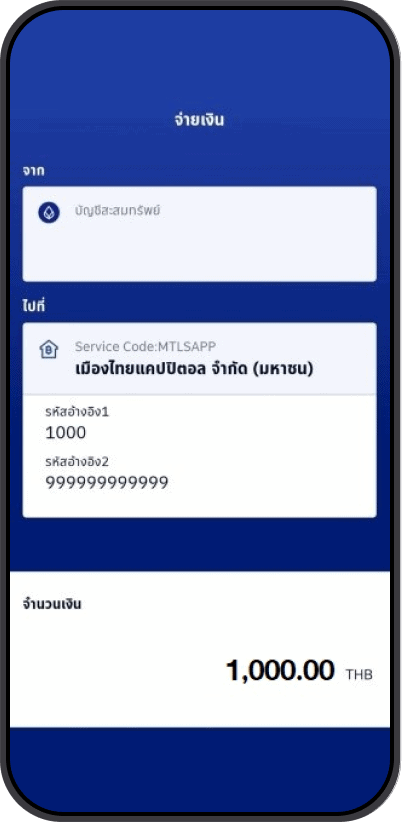
Step 6
Review the amount and confirm the payment.
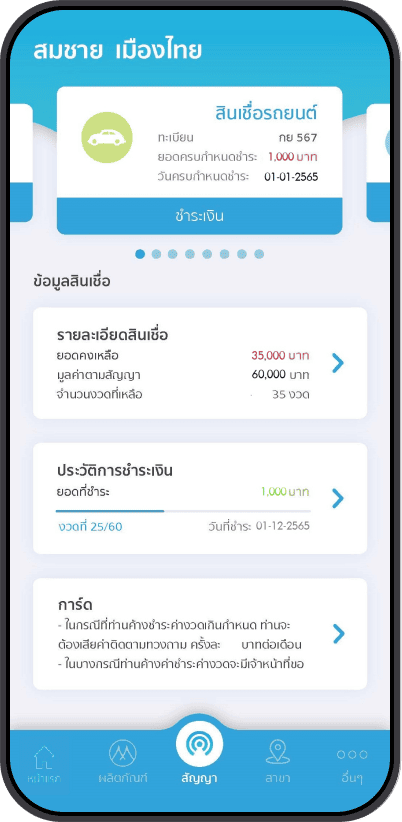
Step 1
Select the contract you want to pay, then tap “ชำระเงิน” (Pay).
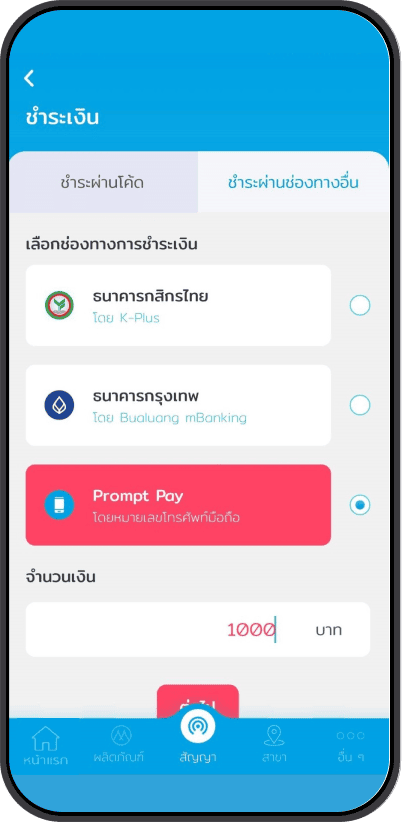
Step 2
Select “ชำระช่องทางอื่น” (Other Payment Channels), then choose “Prompt Pay”.
Enter the payment amount, then tap “ไปต่อ” (Continue).
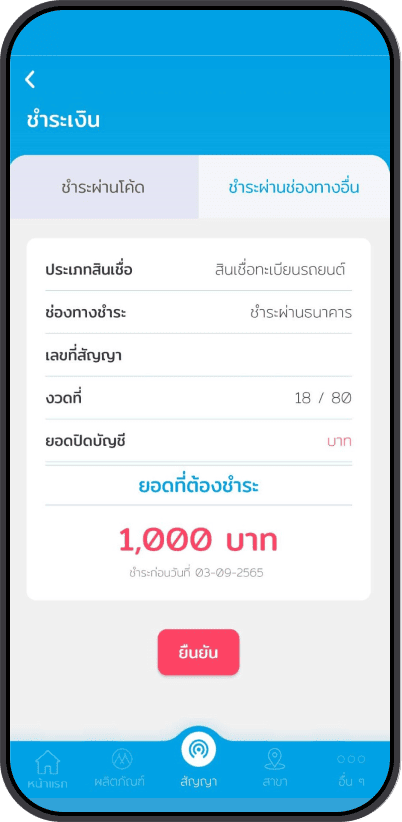
Step 3
Review the loan payment details, then tap “ยืนยัน” (Confirm).
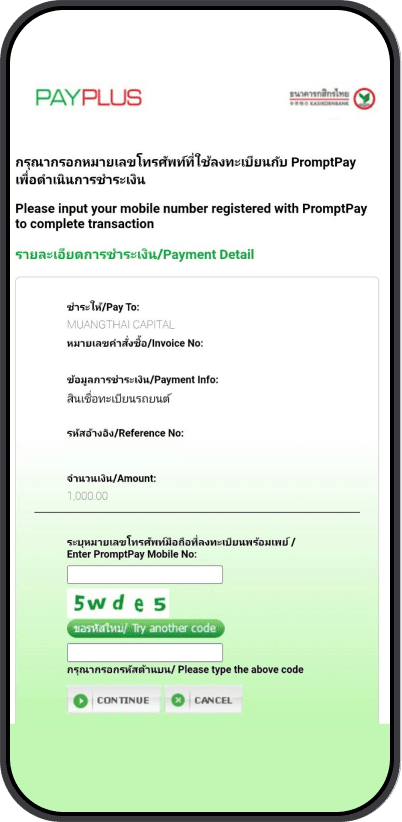
Step 4
On the “PAYPLUS” page, enter the mobile number linked to PromptPay.
Enter the characters shown in the image, then tap “CONTINUE”.
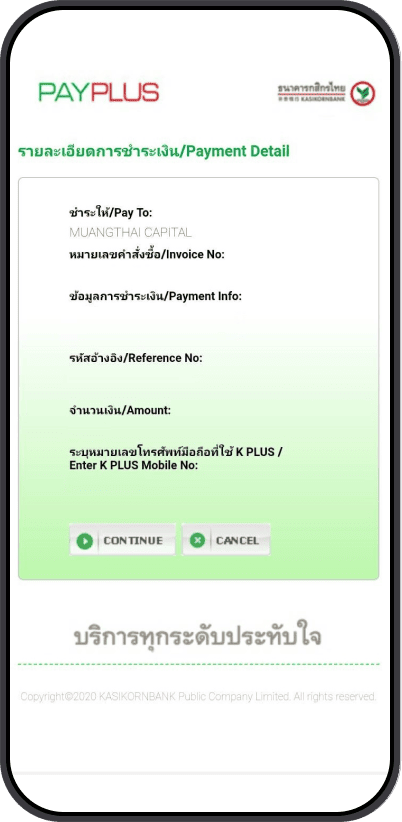
Step 5
Verify the information, then tap “CONTINUE”.
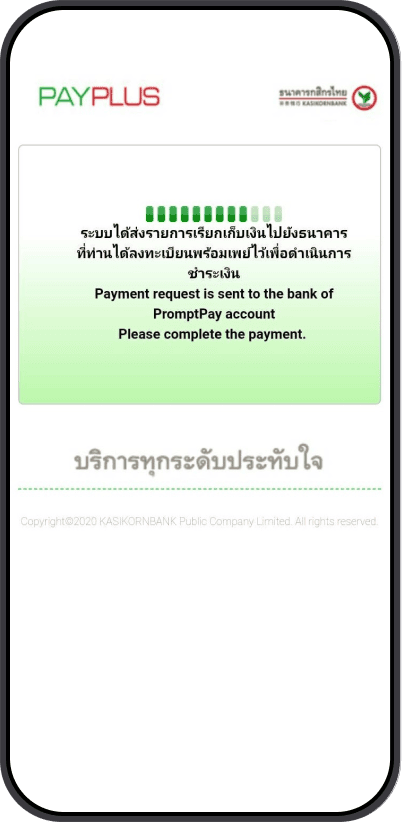
Step 6
A payment request will be sent to the banking application linked to your PromptPay mobile number.
Open the notification, review the amount, and confirm the payment in your banking application.
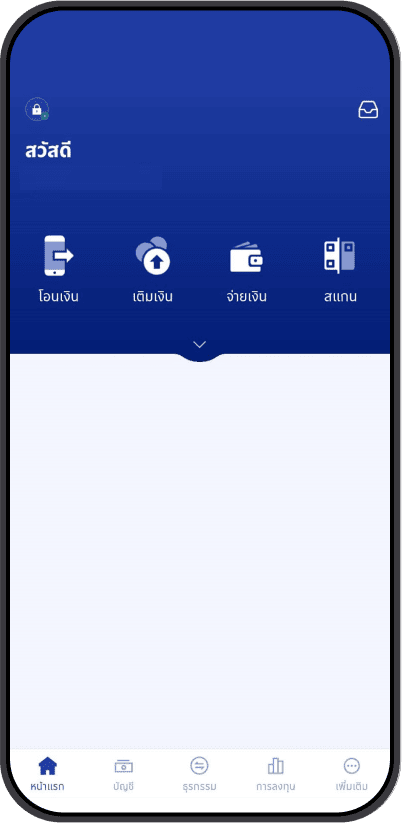
Step 1
Select “เพิ่มเติม” (More).
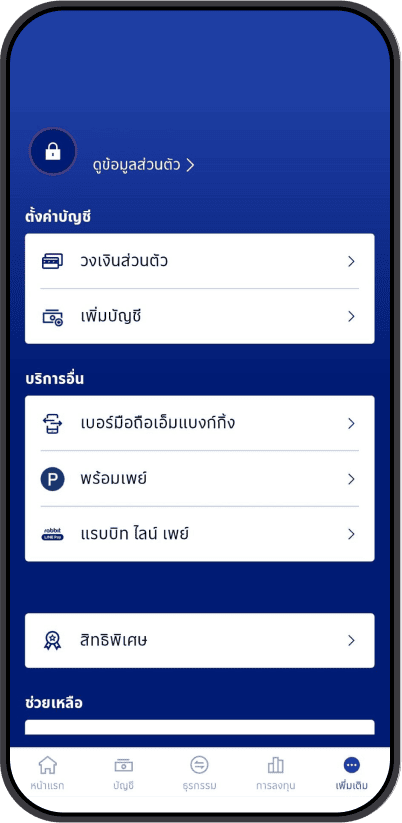
Step 2
Select “พร้อมเพย์” (PromptPay).
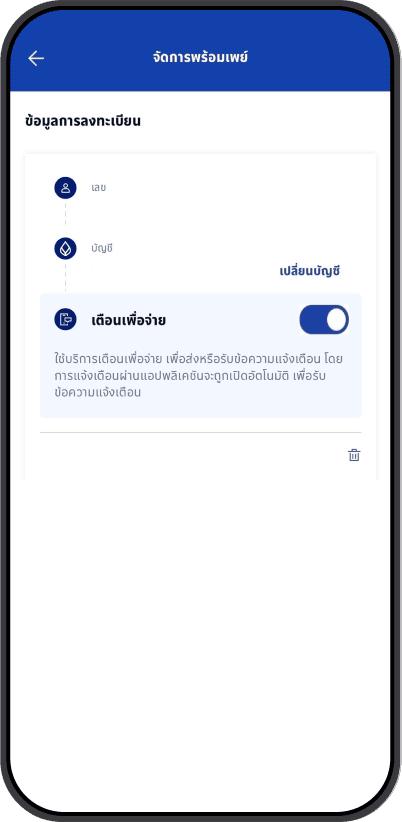
Step 3
Enable “เตือนเพื่อจ่าย” (Request to Pay).
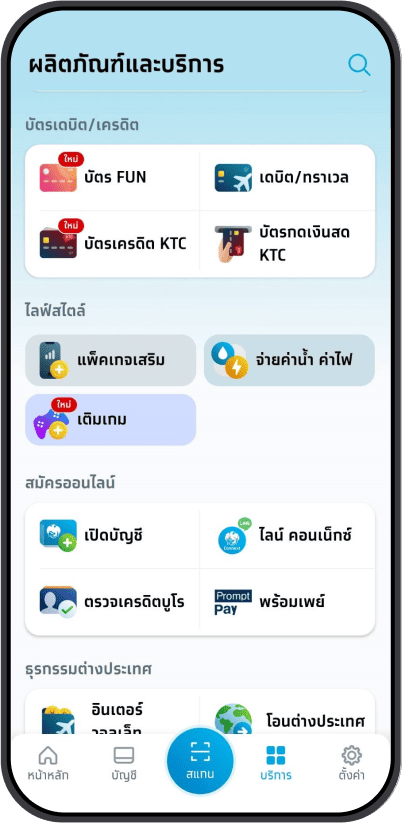
Step 1
Select “บริการ” (Services), then “พร้อมเพย์” (PromptPay).
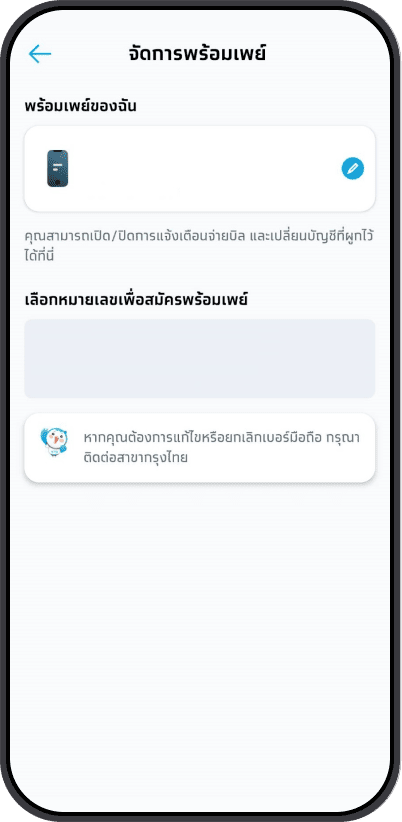
Step 2
Select “แก้ไข” (Edit).
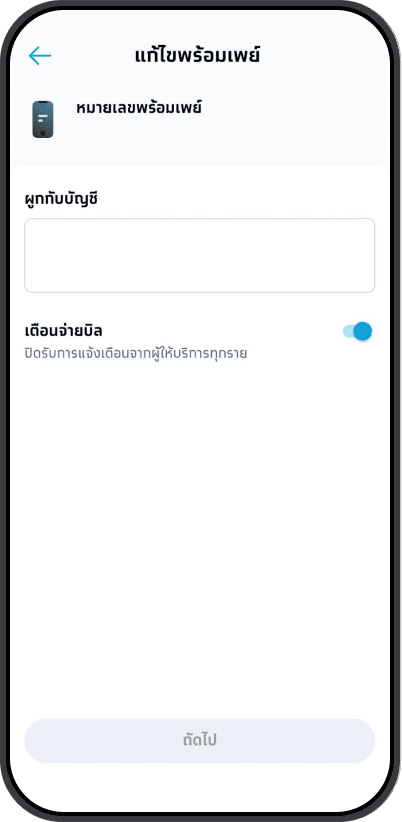
Step 3
Enable “เตือนเพื่อจ่าย” (Request to Pay).
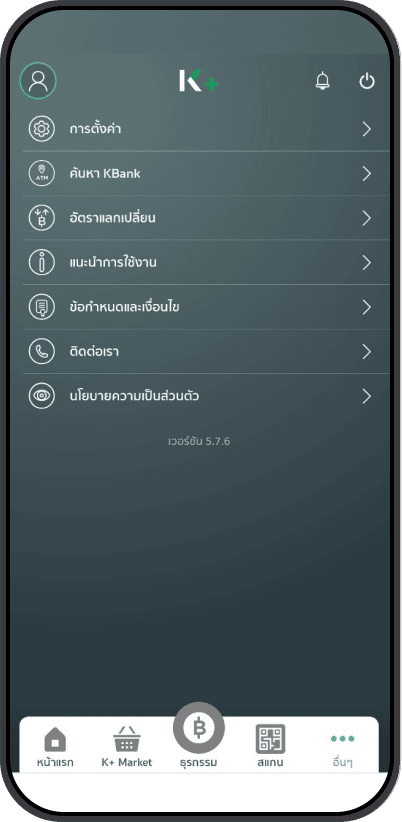
Step 1
Select “อื่นๆ” (Other), then “การตั้งค่า” (Settings).
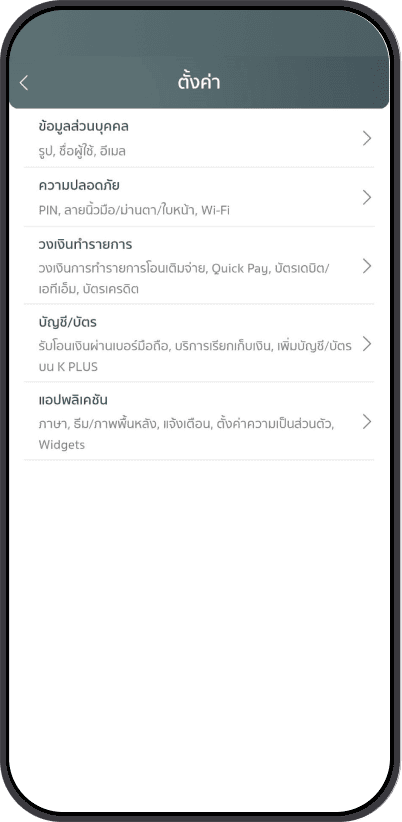
Step 2
Select “บัญชี/บัตร” (Accounts/Cards).
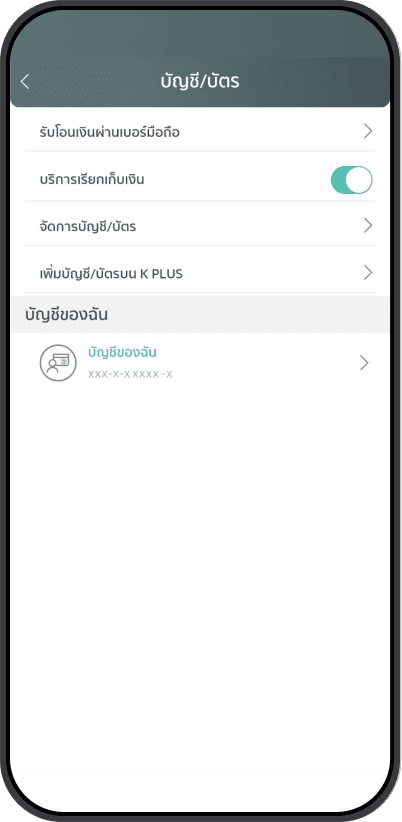
Step 3
Enable “บริการเรียกเก็บเงิน” (Billing Service).
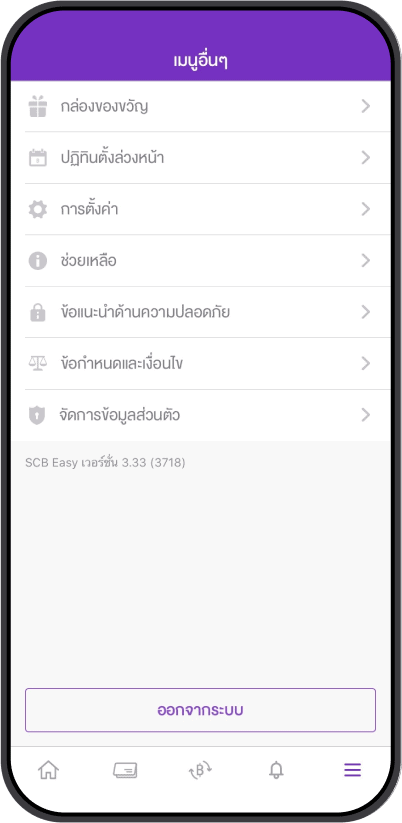
Step 1
Select “อื่นๆ” (Other), then “การตั้งค่า” (Settings).
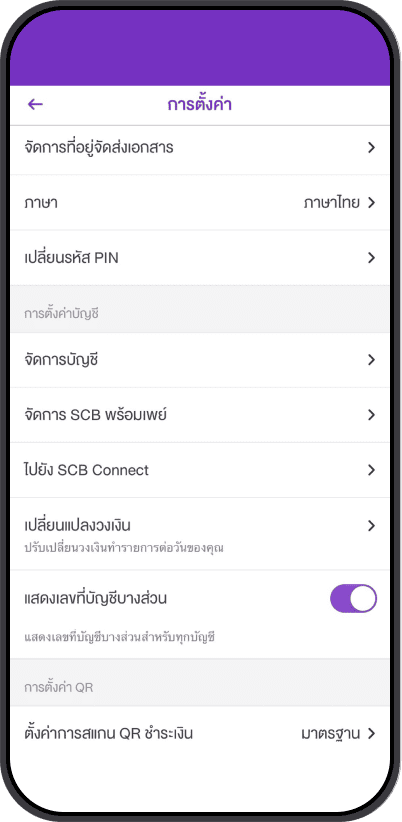
Step 2
Select “จัดการ SCB พร้อมเพย์” (Manage SCB PromptPay).
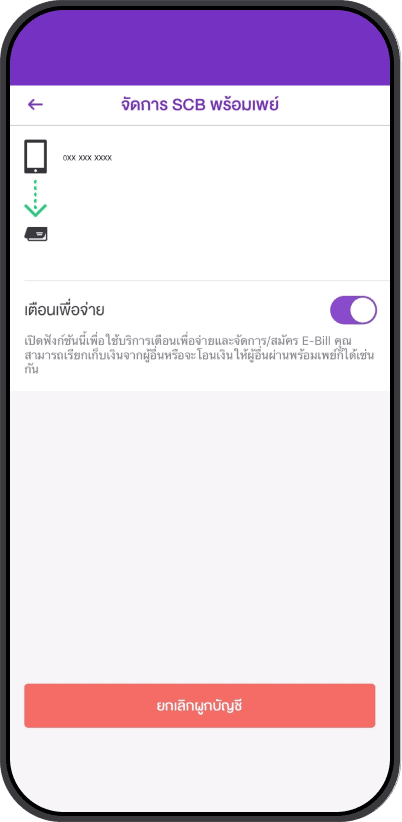
Step 3
Enable “เตือนเพื่อจ่าย” (Request to Pay).
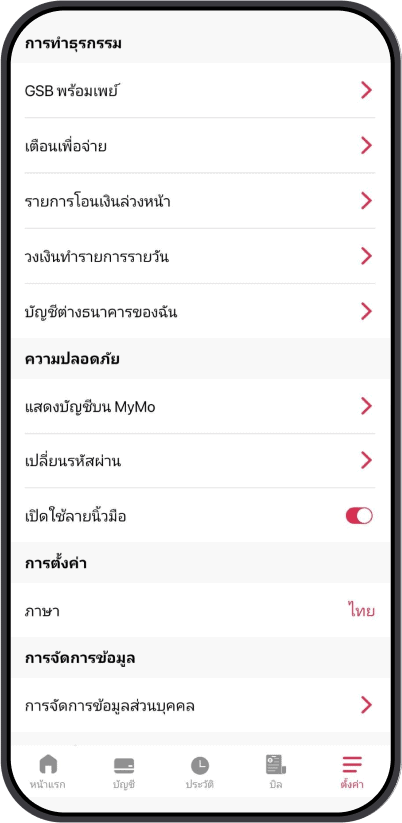
Step 1
Select “ตั้งค่า” (Settings), then “เตือนเพื่อจ่าย” (Request to Pay).
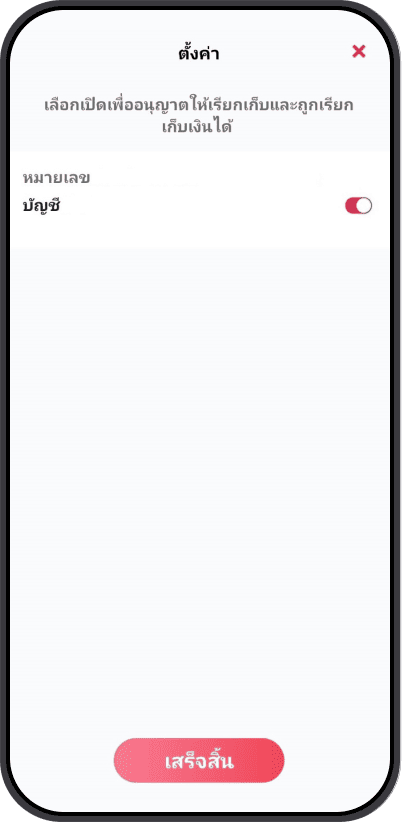
Step 2
Enable “เตือนเพื่อจ่าย” (Request to Pay).
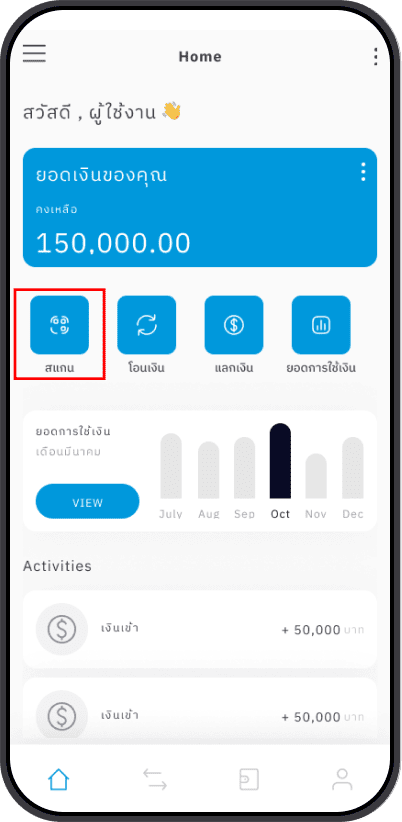
Step 1
Select the scan function in your banking application.
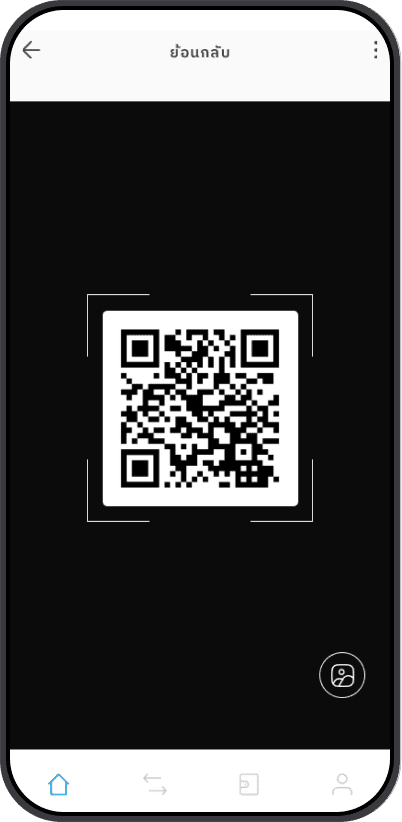
Step 2
Scan the QR code on your installment payment card, or upload the QR code image.
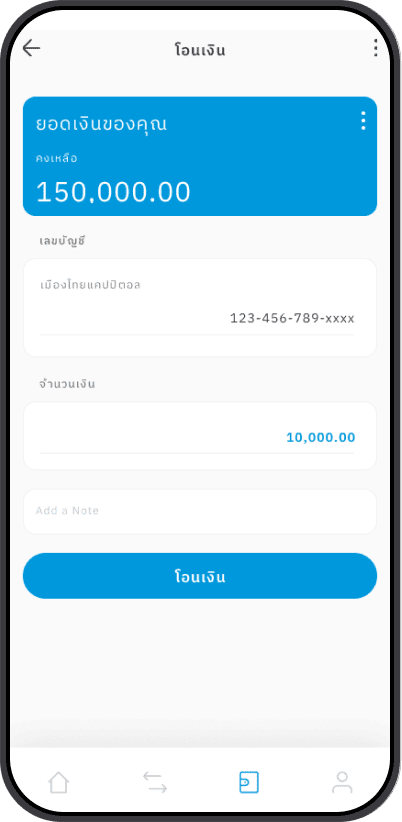
Step 3
Enter the payment amount.
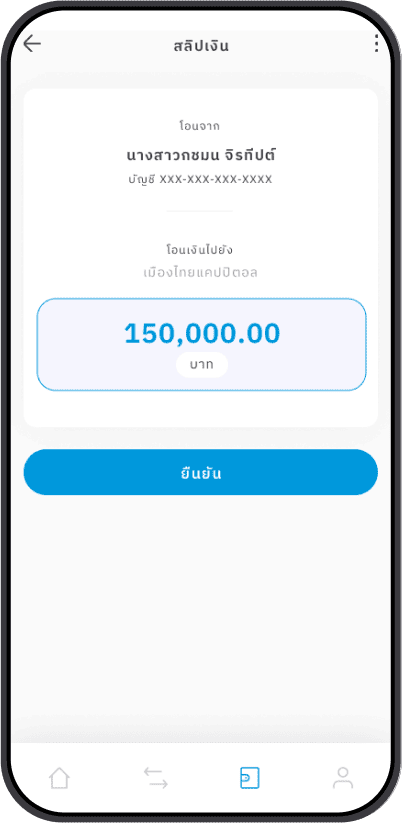
Step 4
Review and confirm the payment.
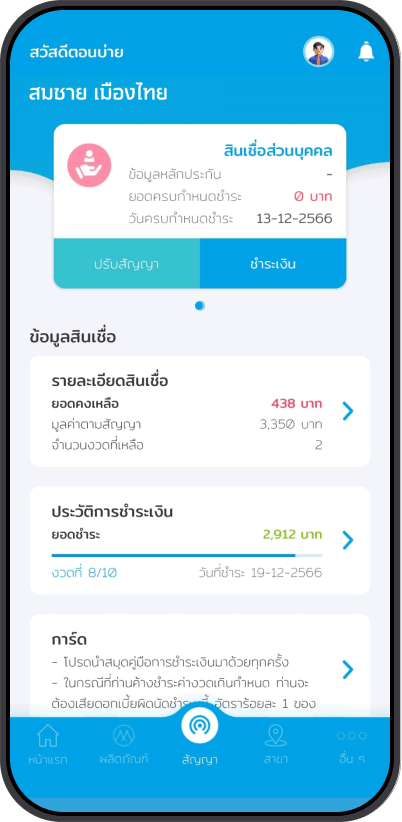
Step 1
Select the contract you want to pay, then tap “ชำระเงิน” (Pay).
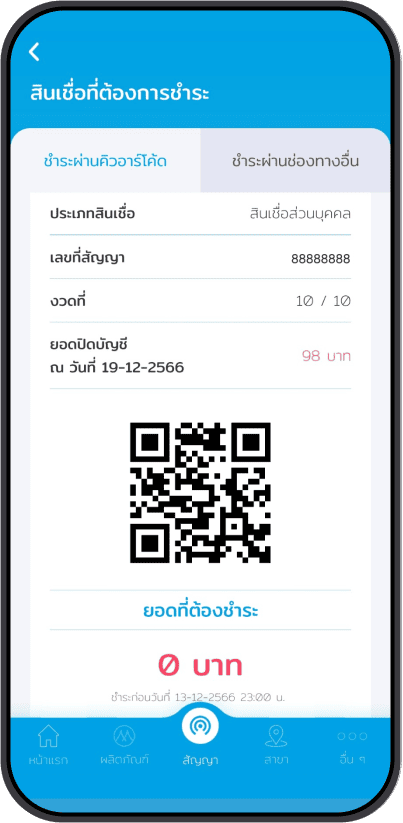
Step 2
Select “ชำระผ่านคิวอาร์โค้ด” (Pay via QR Code).
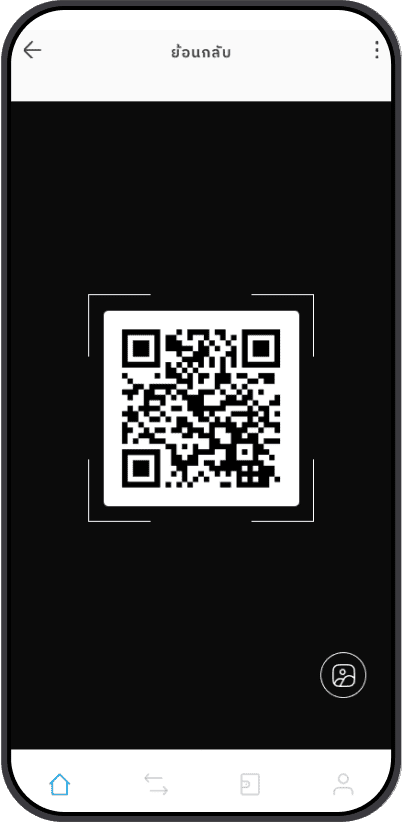
Step 3
The QR code can be scanned by participating payment agents or mobile banking applications.